
TL;DR:
The github repo with all scripts are here.
Because of specific requirements, reasons, or preferences, some customers need to self-manage a Microsoft AD directory on-premises or in the cloud.
AWS offers options to have their fully managed Microsoft Windows file servers (Amazon FSx for Windows File Server) join a self-managed Microsoft Active Directory.
In this post, I will provide an example of launching an FSx for Windows File Server and joining a self-managed domain using Terraform.
This article won’t go into details on the following items as they are presumed to already be created.
Requirements:
- self-managed Microsoft AD directory
- the fully qualified, distinguished name (FQDN) of the organisational unit (OU) within your self-managed AD directory that the Windows File Server instance will join; and
- valid DNS servers and networking configuration (VPC/Subnets) that allows traffic from the file system to the domain controller.
In addition, I recommend to go through the steps “Validating your Active Directory configuration” from AWS Documentation at the following link to validate self-managed AD configuration before starting creation of the FSx filesystem:
On the file _variables.tf, we will provide the details for the self-managed AD, including IPs, DNS Name, Organisational Unit, and Domain Username and Password:
_variables.tf
variable "ad_directory_name" {
 type    = string
 default = "example.com"
}

variable "ad_directory_ip1" {
 type    = string
 default = "XXX.XXX.XXX.XXX"
}

variable "ad_directory_ip2" {
 type    = string
 default = "XXX.XXX.XXX.XXX"
}

variable "fsx_name" {
 type    = string
 default = "fsxblogpost"
}

variable "domain_ou_path" {
 type    = string
 default = "OU=Domain Controllers,DC=example,DC=com"
}

variable "domain_fsx_username" {
 type    = string
 default = "fsx"
}

variable "domain_fsx_password" {
 type    = string
 default = "placeholder"
}

variable "fsx_deployment_type" {
 type    = string
 default = "SINGLE_AZ_1"
}

variable "fsx_subnet_ids" {
 type    = list(string)
 default = ["subnet-XXXXXXXXXXXX"]
}

variable "vpc_id" {
 type    = string
 default = "vpc-XXXXXXXXXXXX"
}


variable "fsx_deployment_type" {
 type    = string
 default = "SINGLE_AZ_1"
}

variable "fsx_subnet_ids" {
 type    = list(string)
 default = ["subnet-XXXXXXXXXXXX"]
}

variable "vpc_id" {
 type    = string
 default = "vpc-XXXXXXXXXXXX"
}
The file fsx.tf is where we will effectively create FSx filesystem, and also KMS encryption key and KMS Key policy. The KMS key is optional, however I strongly recommend having the filesystem encrypted.
fsx.tf
data "aws_iam_policy_document" "fsx_kms" {
 statement {
   sid       = "Allow FSx to encrypt storage"
   actions   = ["kms:GenerateDataKey"]
   resources = ["*"]
   principals {
     type        = "Service"
     identifiers = ["fsx.amazonaws.com"]
   }
 }
 statement {
   sid       = "Allow account to manage key"
   actions   = ["kms:*"]
   resources = ["arn:aws:kms:${data.aws_region.current.name}:${data.aws_caller_identity.current.account_id}:key/*"]
   principals {
     type        = "AWS"
     identifiers = ["arn:aws:iam::${data.aws_caller_identity.current.account_id}:root"]
   }
 }
}

resource "aws_kms_key" "fsx" {
 description             = "FSx Key"
 deletion_window_in_days = 7
 policy                  = data.aws_iam_policy_document.fsx_kms.json
}

resource "aws_fsx_windows_file_system" "fsx" {
 kms_key_id          = aws_kms_key.fsx.arn
 storage_capacity    = 100
 subnet_ids          = var.fsx_subnet_ids
 throughput_capacity = 32
 security_group_ids  = [aws_security_group.fsx_sg.id]
 deployment_type     = var.fsx_deployment_type

 self_managed_active_directory {
   dns_ips                                = [var.ad_directory_ip1, var.ad_directory_ip2]
   domain_name                            = var.ad_directory_name
   username                               = var.domain_fsx_username
   password                               = var.domain_fsx_password
   organizational_unit_distinguished_name = var.domain_ou_path
 }
}

resource "aws_security_group" "fsx_sg" {
 name        = "${var.fsx_name}-fsx-sg"
 description = "SG for FSx"
 vpc_id      = data.aws_vpc.selected.id

 tags = {
   Name = "${var.fsx_name}-fsx-sg"
 }
}

resource "aws_security_group_rule" "fsx_default_egress" {
 description       = "Traffic to internet"
 type              = "egress"
 from_port         = 0
 to_port           = 0
 protocol          = "-1"
 security_group_id = aws_security_group.fsx_sg.id
 cidr_blocks       = ["0.0.0.0/0"]
}

resource "aws_security_group_rule" "fsx_access_from_vpc" {
 type              = "ingress"data "aws_iam_policy_document" "fsx_kms" {
  statement {
    sid       = "Allow FSx to encrypt storage"
    actions   = ["kms:GenerateDataKey"]
    resources = ["*"]
    principals {
      type        = "Service"
      identifiers = ["fsx.amazonaws.com"]
    }
  }
  statement {
    sid       = "Allow account to manage key"
    actions   = ["kms:*"]
    resources = ["arn:aws:kms:${data.aws_region.current.name}:${data.aws_caller_identity.current.account_id}:key/*"]
    principals {
      type        = "AWS"
      identifiers = ["arn:aws:iam::${data.aws_caller_identity.current.account_id}:root"]
    }
  }
}

resource "aws_kms_key" "fsx" {
  description             = "FSx Key"
  deletion_window_in_days = 7
  policy                  = data.aws_iam_policy_document.fsx_kms.json
}

resource "aws_fsx_windows_file_system" "fsx" {
  kms_key_id          = aws_kms_key.fsx.arn
  storage_capacity    = 100
  subnet_ids          = var.fsx_subnet_ids
  throughput_capacity = 32
  security_group_ids  = [aws_security_group.fsx_sg.id]
  deployment_type     = var.fsx_deployment_type

  self_managed_active_directory {
    dns_ips                                = [var.ad_directory_ip1, var.ad_directory_ip2]
    domain_name                            = var.ad_directory_name
    username                               = var.domain_fsx_username
    password                               = var.domain_fsx_password
    organizational_unit_distinguished_name = var.domain_ou_path
  }
}

resource "aws_security_group" "fsx_sg" {
  name        = "${var.fsx_name}-fsx-sg"
  description = "SG for FSx"
  vpc_id      = data.aws_vpc.selected.id

  tags = {
    Name = "-${var.fsx_name}-fsx-sg"
  }
}

resource "aws_security_group_rule" "fsx_default_egress" {
  description       = "Traffic to internet"
  type              = "egress"
  from_port         = 0
  to_port           = 0
  protocol          = "-1"
  security_group_id = aws_security_group.fsx_sg.id
  cidr_blocks       = ["0.0.0.0/0"]
}

resource "aws_security_group_rule" "fsx_access_from_vpc" {
  type              = "ingress"
  from_port         = 0
  to_port           = 0
  protocol          = "-1"
  security_group_id = aws_security_group.fsx_sg.id
  cidr_blocks       = [data.aws_vpc.selected.cidr_block]
}

 from_port         = 0
 to_port           = 0
 protocol          = "-1"
 security_group_id = aws_security_group.fsx_sg.id
 cidr_blocks       = [data.aws_vpc.selected.cidr_block]
}
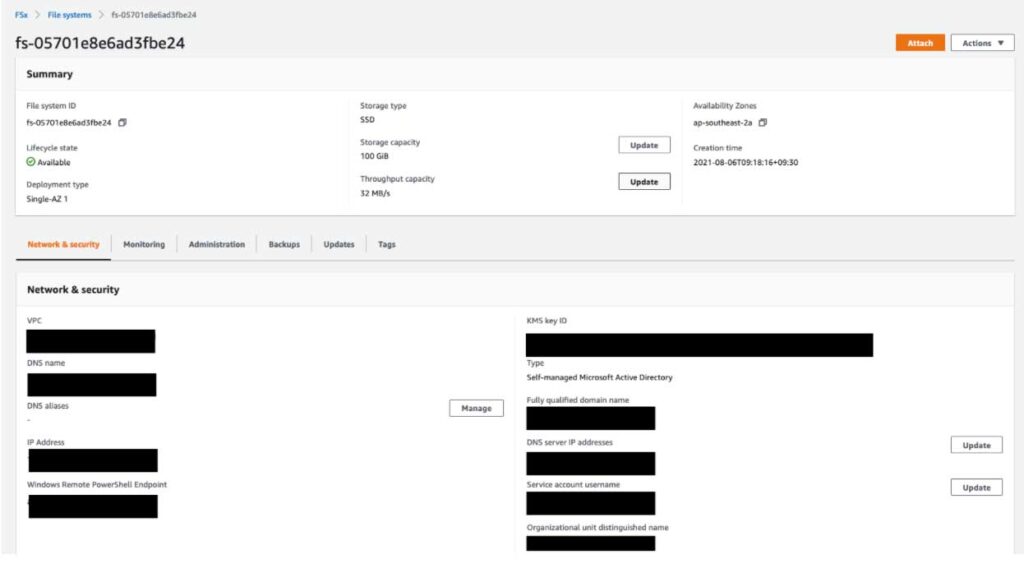
Once you apply the scripts on Terraform, it should take around 15 minutes for the resources to be created:
aws_fsx_windows_file_system.fsx: Creation complete after 15m54s [id=fs-05701e8e6ad3fbe24]

Apply complete! Resources: 5 added, 0 changed, 0 destroyed.
You should see the FSx created and in Available state on AWS Console, which means FSx was able to join the self-managed domain:
Conclusion
I hope the instructions and terraform scripts provided can make your life easier when launching FSx for Windows File Server and joining a self-managed domain using Terraform.
When recently working on a project, I noticed there weren’t many examples online, so I decided to write this blog post to help others.
I would encourage you to open an issue or feature request on the github repo in case you need any additional help when using the scripts.
At DNX Solutions, we work to bring a better cloud and application experience for digital-native companies in Australia.
Our current focus areas are AWS, Well-Architected Solutions, Containers, ECS, Kubernetes, Continuous Integration/Continuous Delivery and Service Mesh.
We are always hiring cloud engineers for our Sydney office, focusing on cloud-native concepts.
Check our open-source projects at https://github.com/DNXLabs and follow us on Twitter, Linkedin or Facebook.